Channel and server control
You can start and stop the Makalu playout nodes of your channels and other Makalu-related servers, either manually or automatically based on schedules. To do so, use the administrative app Makalu Admin.
Shutting down servers while they are not needed can reduce your infrastructure costs. This is useful, for example, if a channel only broadcasts for a few hours a day: You can keep the channel's playout nodes running only while they are needed, instead of keeping them running 24/7.
Notice
Makalu Admin is only available in cloud-based Makalu deployments that run on AWS infrastructure. In addition, it is only available in the Makalu Hub to users with the required administrator permissions.
Within Makalu Admin, the available functions also depend on your permissions: You can either only view the listed channels and compute resources or also start and stop them, create schedules, and manage compute resources.
Notice
Makalu Admin starts and stops entire servers (playout nodes and compute resources). To restart, start, or stop individual Makalu services on a running server, use the Service Control tab instead (see the section Service Control tab (Detailed Channel View)).
Accessing Makalu Admin
To access Makalu Admin:
-
Open the Makalu Hub as described in section Accessing the Makalu Hub.
-
In the app list in the left column, in the section Administration, select Makalu Admin.
The Makalu Admin UI is opened in the Admin tab.
Channel Control overview
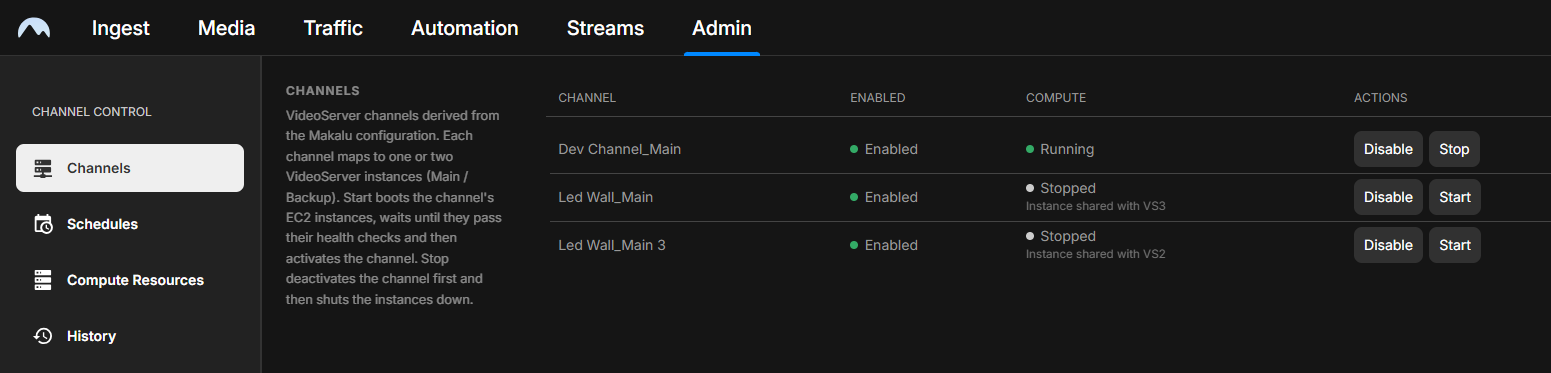
The Channel Control area of Makalu Admin consists of the following four sections:
| Section | Purpose |
|---|---|
| Channels | Lists the channels of your Makalu deployment and allows you to start and stop their playout nodes. |
| Schedules | Allows you to start and stop channels and compute resources automatically at a specified time (once or weekly on selected days). |
| Compute Resources | Lists additional servers (for example, streaming servers) and allows you to start and stop them. |
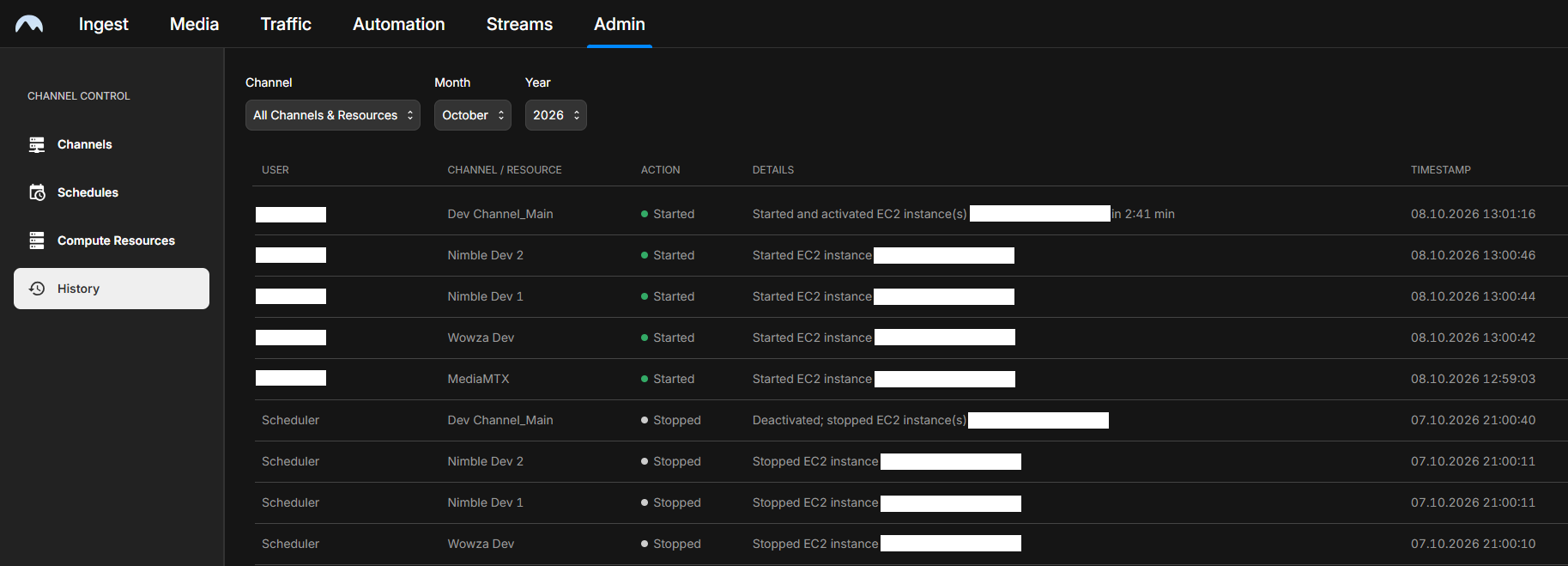
| History | Lists all start and stop actions that have already been executed, including the affected server and the user who triggered the action. |
Starting and stopping channels
The Channels section lists the channels of your Makalu deployment. Each channel runs on a playout node. If a channel uses a redundant setup, the main and backup playout nodes are listed separately.
Warning
Stopping a playout node can interrupt the output of a channel and cause an on-air outage, for example, if you stop the main and the backup playout node of a channel at the same time or if you stop a playout node while the corresponding channel is on air. Only start or stop playout nodes if you are familiar with the setup of the corresponding channel.
To start or stop a channel:
-
Open Makalu Admin as described in section Accessing Makalu Admin.
-
Select the Channels section.
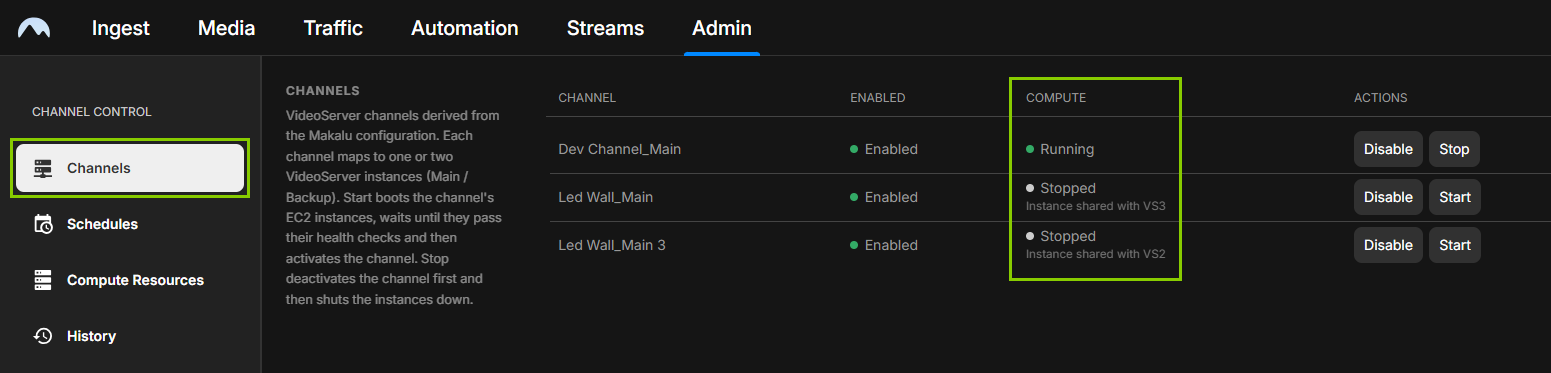
The list of available channels is displayed. The current status of each channel is listed in the Compute column.
Makalu Admin - Channels -
In the row of the corresponding channel, click Stop to shut down the channel's playout node, or click Start to start it.
A confirmation dialog is displayed.
-
Confirm the selected action by clicking the corresponding Confirm button.
Depending on the selected action, the playout node of the channel is either stopped or started. The action is logged in the History section.
Notice
Starting a playout node takes some time, usually between 2 and 3 minutes. Take this startup time into account when planning your broadcasts: Start the playout node early enough before the first scheduled content.
Managing compute resources
In addition to the playout nodes of your channels, a Makalu deployment usually includes other servers, for example, streaming servers such as Wowza or Nimble. In Makalu Admin, these servers are referred to as compute resources. You can add them to Makalu Admin in the Compute Resources section to start and stop them in the same way as channels. Adding, editing, and deleting compute resources requires additional permissions beyond those required for starting and stopping them.
Starting and stopping a compute resource
Warning
Other Makalu functions may depend on a compute resource. For example, a streaming server is used for live stream ingest and stream output/distribution. If you stop a streaming server, these functions are not available until you start the server again.
Notice
You can only start or stop enabled compute resources.
To start or stop a compute resource:
-
Open Makalu Admin as described in section Accessing Makalu Admin.
-
Select the Compute Resources section.
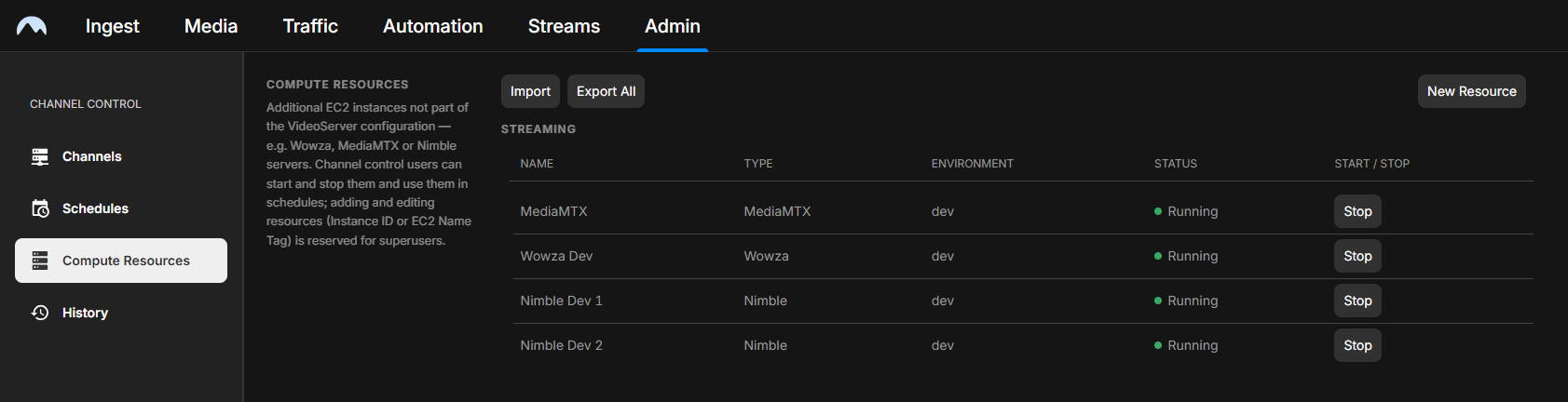
The list of available compute resources is displayed.
Makalu Admin - Compute resources -
In the row of the corresponding compute resource, click Stop to shut down the server, or click Start to start it.
A confirmation dialog is displayed.
-
Confirm the selected action by clicking the corresponding Confirm button.
Depending on the selected action, the compute resource is stopped or started. The action is logged in the History section.
Adding a compute resource
To add a compute resource:
-
Open Makalu Admin as described in section Accessing Makalu Admin.
-
Select the Compute Resources section.
-
Click New Resource.
The form for the new compute resource is displayed.
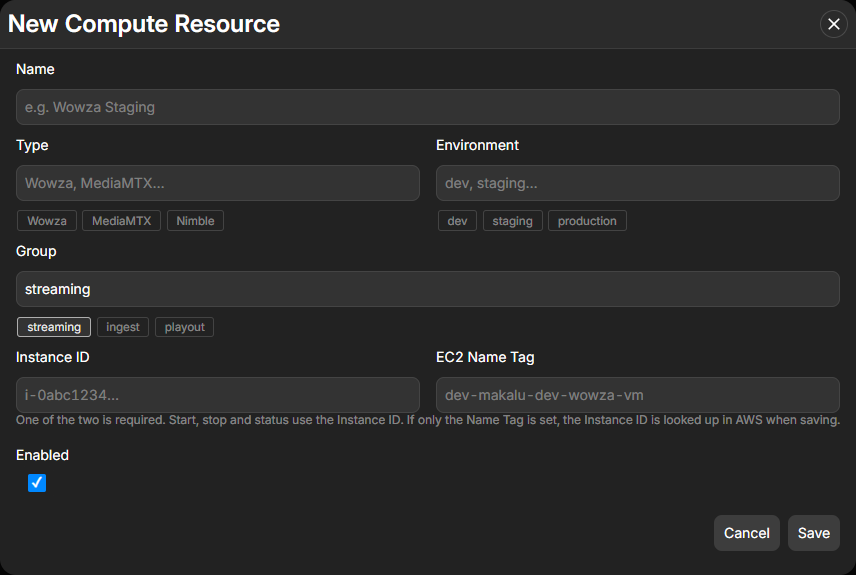
Makalu Admin - New compute resource -
Fill in the following fields.
Field Description Name A name that identifies the compute resource in the list. Type A label that describes the kind of server, for example, Wowza,MediaMTX, orNimble. The label helps you to keep track of your compute resources and has no effect on how the server is started or stopped.Environment A label that describes the environment the server belongs to, for example, dev,staging, orproduction. The label helps you to keep track of your compute resources and has no effect on how the server is started or stopped.Group A label for grouping related compute resources, for example, streaming,ingest, orplayout. The label helps you to keep track of your compute resources and has no effect on how the server is started or stopped.Instance ID The ID of the server's AWS EC2 instance. Makalu requires this ID to start and stop the server.
Notice: If you do not know the instance ID, you can leave this field empty and enter the EC2 name tag instead. Makalu then automatically searches for the corresponding instance and enters its ID.EC2 Name Tag The name tag of the server's AWS EC2 instance. Only required if you do not enter the instance ID. Enabled Enables the start and stop functions for the compute resource. If you clear the checkbox, the compute resource cannot be started or stopped. -
Click Save.
The compute resource is added to the list.
Editing a compute resource
To edit a compute resource:
-
Open Makalu Admin as described in section Accessing Makalu Admin.
-
Select the Compute Resources section.
-
Select the compute resource to be edited.
-
Click Edit.
The form with the current properties of the compute resource is displayed.
-
Change the properties as required. For a description of the available fields, see the section Adding a compute resource.
-
Click Save.
The changes to the compute resource are saved.
Deleting compute resources
To delete compute resources:
-
In the Compute Resources section, select one or more compute resources to be deleted.
-
Click Delete.
A confirmation dialog is displayed.
-
Confirm the deletion.
The selected compute resources are removed from the list.
Importing and exporting compute resources
You can export compute resources to a JSON file and import them from a JSON file. This allows you, for example, to keep a backup of your compute resources or to prepare the compute resources for a new Makalu deployment without having to add them individually.
To export compute resources:
-
In the Compute Resources section, select one or more compute resources to be exported.
-
Click Export.
The selected compute resources are saved to a JSON file.
Tip
To export all compute resources at once without selecting them individually, click Export All.
To import compute resources:
-
In the Compute Resources section, click Import.
-
Select the JSON file to be imported.
The compute resources contained in the file are added to the list.
Using schedules
Instead of starting and stopping channels and compute resources manually, you can create schedules that start or stop them automatically at a specified time. A schedule can either run once or weekly on selected days.
A schedule performs exactly one action (start or stop). For example, to start servers in the morning and stop them in the evening, create two schedules: one start schedule and one stop schedule.
Creating a schedule
To create a schedule:
-
Open Makalu Admin as described in section Accessing Makalu Admin.
-
Select the Schedules section.
The list of existing schedules is displayed.
-
Click New Schedule.
The form for the new schedule is displayed.
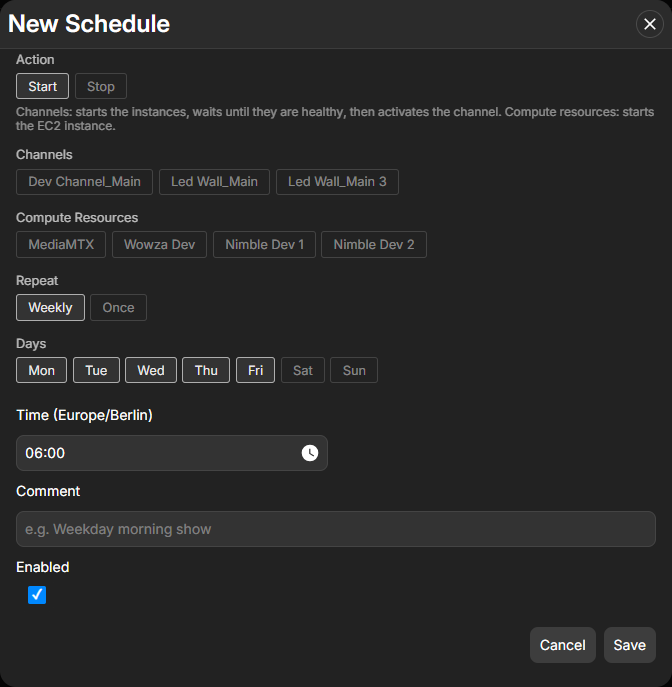
Makalu Admin - New schedule -
In the Action field, select Start or Stop, depending on whether the schedule should start or stop the selected server(s).
-
In the Channels field, select the channel(s) to be started or stopped.
-
In the Compute Resources field, select the compute resource(s) to be started or stopped.
Notice
You can combine channels and compute resources in a single schedule.
-
In the Repeat field, select whether the schedule should run once or weekly.
-
For a weekly schedule, in the Days field, select the days of the week on which the schedule should run.
-
In the Time field, select the time at which the action should be executed. For a one-time schedule, you can also select the Date.
-
(Optional) In the Comment field, enter a comment that describes the purpose of the schedule.
-
To activate the schedule, select the Enabled checkbox. If you do not want the schedule to run yet, clear the checkbox.
-
Click Save.
The schedule is added to the list. If the schedule is enabled, Makalu automatically starts or stops the selected channels and compute resources at the specified time.
Editing a schedule
To edit a schedule:
-
Open Makalu Admin as described in section Accessing Makalu Admin.
-
Select the Schedules section.
-
Select the schedule to be edited.
-
Click Edit.
The form with the current settings of the schedule is displayed.
-
Change the settings as required. For a description of the available fields, see the section Creating a schedule.
-
Click Save.
The changes to the schedule are saved.
Enabling or disabling a schedule
You can temporarily disable a schedule without deleting it. A disabled schedule does not start or stop any servers until you enable it again.
To enable or disable a schedule:
-
In the Schedules section, select the schedule.
-
Click Edit.
The form with the current settings of the schedule is displayed.
-
Select or clear the Enabled checkbox.
-
Click Save.
The schedule is enabled or disabled.
Deleting a schedule
To delete a schedule:
-
In the Schedules section, locate the schedule to be deleted.
-
In the row of the schedule, click the Options icon
 and select Delete.
A confirmation dialog is displayed.
-
Confirm the deletion.
The schedule is removed from the list.
Tip
To keep a schedule for later use without it starting or stopping any servers, disable it instead of deleting it (see the section Enabling or disabling a schedule).
Viewing the history
The History section lists all start and stop actions performed via Makalu Admin. Each entry shows which channel or compute resource was started or stopped, when, and by which user. Actions that were executed automatically by a schedule are listed with the user Scheduler.
To find specific entries, use the Channel, Month, and Year filters above the list. The Channel filter also includes compute resources.