User interface
Component overview
The Traffic UI consists of the following elements:
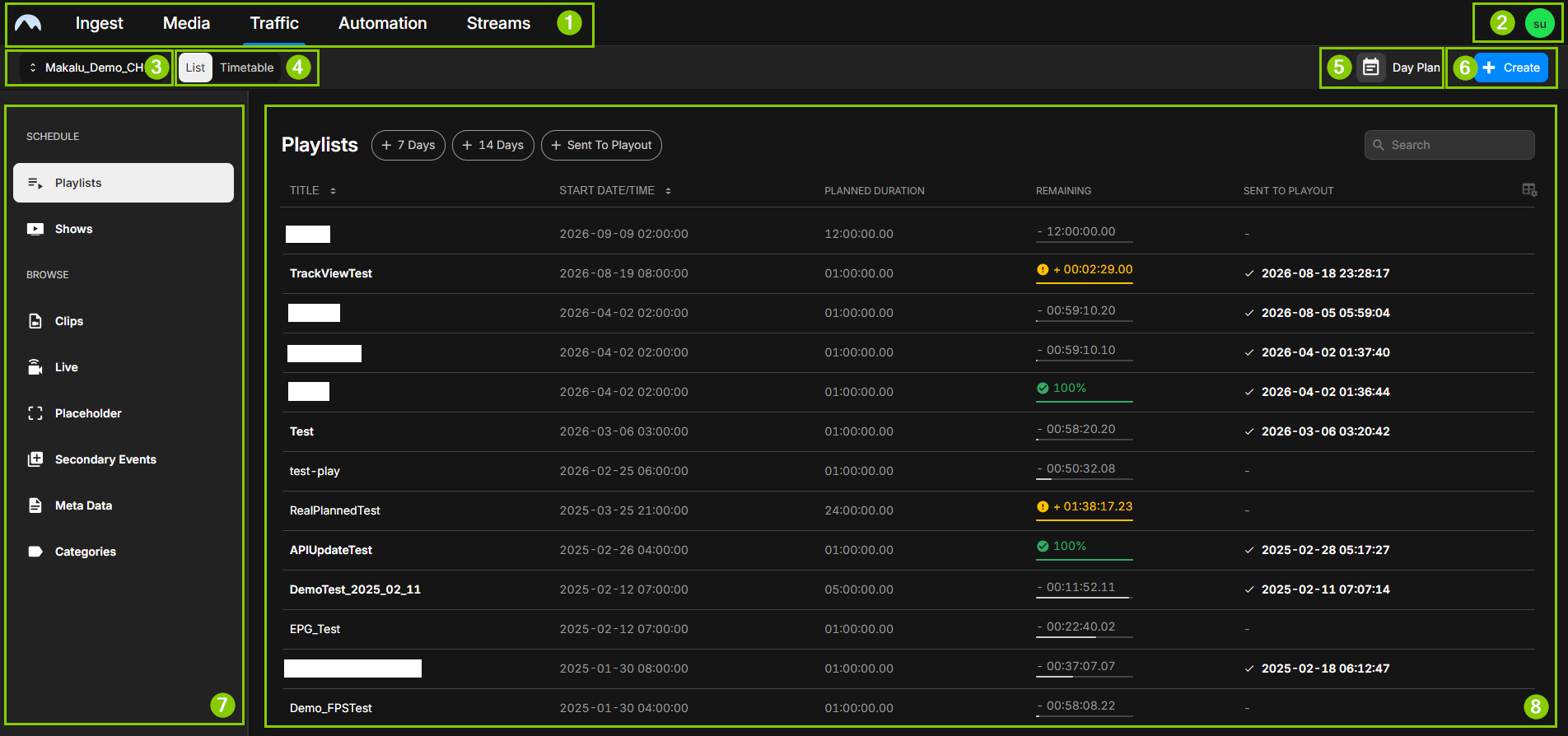
- Makalu UI main navigation
- User menu
- Channel selection
- View selection
- Day plan
- Create
- Traffic UI navigation
- Content area
Makalu UI main navigation
Via the main navigation, you can access all functional areas of Makalu at any time by clicking the corresponding tab.
Tip
You can also return to the Makalu Hub by clicking the Makalu logo at the top left.
User menu
The user menu provides access to the following user- and system-related options:
| Option | Purpose |
|---|---|
| Build | Displays the build/version number of the Makalu UI |
| Open the documentation | Open the Makalu user manual |
| Reset Local Storage | Reset local browser storage (only relevant for development purposes) |
| Copy API Token | Copy an API token to the clipboard (only relevant for development purposes) |
| Logout | Log the current user out of the Makalu system |
Channel selection
The Channel dropdown menu at the top left is used to select the channel for which playlists and shows are displayed and edited. For more information, see the section Using the Playlists View.
View selection
The List/Timetable toggle at the top left is used to switch between the List View and the Timetable View of the Playlists area. For more information, see the sections Using the List View and Using the Timetable View.
Day plan
The Day Plan panel provides an hourly timeline of the currently selected day for the selected channel. To enable and disable it, use the Day Plan button at the top right.
Playlists scheduled for the selected day are displayed on the timeline according to their planned start time. The current time is marked on the timeline. Use the Previous/Next arrows at the top right of the panel to navigate to the previous or next day.
Create
The Create button at the top right is used to create a new playlist or show, depending on the currently selected area in the Traffic UI navigation. For more information, see the sections Creating a playlist and Creating a show.
Traffic UI navigation
The Traffic UI navigation (the sidebar on the left) provides access to all areas of Makalu Traffic, grouped into the following sections:
| Section | Element | Description |
|---|---|---|
| Schedule | Playlists | Opens the Playlists area, used for playlist management (see the section Using the Playlists View) |
| Shows | Opens the Shows area, used for show management (see the section Using the Shows View) | |
| Browse | Clips | Opens the list of available clips |
| Live | Opens the list of available live sources | |
| Placeholder | Opens the list of available placeholder assets | |
| Secondary Events | Opens the list of available secondary events (see the section Secondary events) | |
| Meta Data | Opens the list of available metadata keysets (see the section Metadata) | |
| Categories | Opens the list of available show categories, used for category management (see the section Using the Categories View) |
Notice
Unlike the Library within an opened playlist or show (see the section Using the Playlists View), the Browse area can be used to view and preview available content channel-independent and without having to open a playlist or show first (see the section Using the Preview). Content cannot be added to a playlist or show from the Browse area.
Content area
The main content area displays the actual content of the element currently selected in the Traffic UI navigation. For more information about the available areas and their content, see the corresponding sections referenced in the Traffic UI navigation table above.